
01
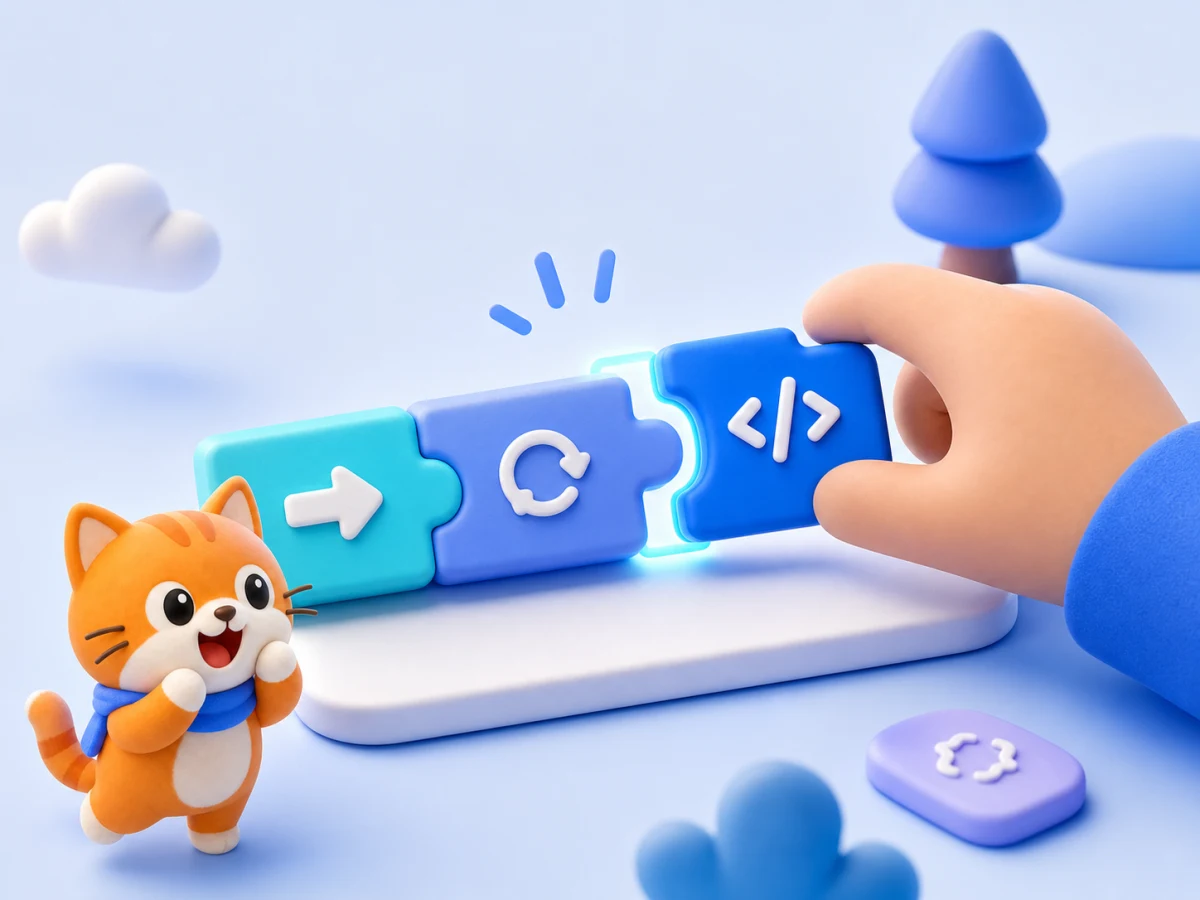
Blocks feel friendlier than typing
Wrong snaps simply won't fit — fewer syntax tears, better first steps.
 DomiKidsAI
An all-in-one AI learning companion for kids — learning through chat, creation, and exploration.
Join Creation PlanChat Sprites
Art Wizard
Animation Studio
Creative Workshop
Build instructions with blocks — cats, cars, and stages listen right away. No grammar first: play, then feel how programs really work.
Ages 6–12 · desktop & tablet friendly
Block stage
Snap · run · see it move
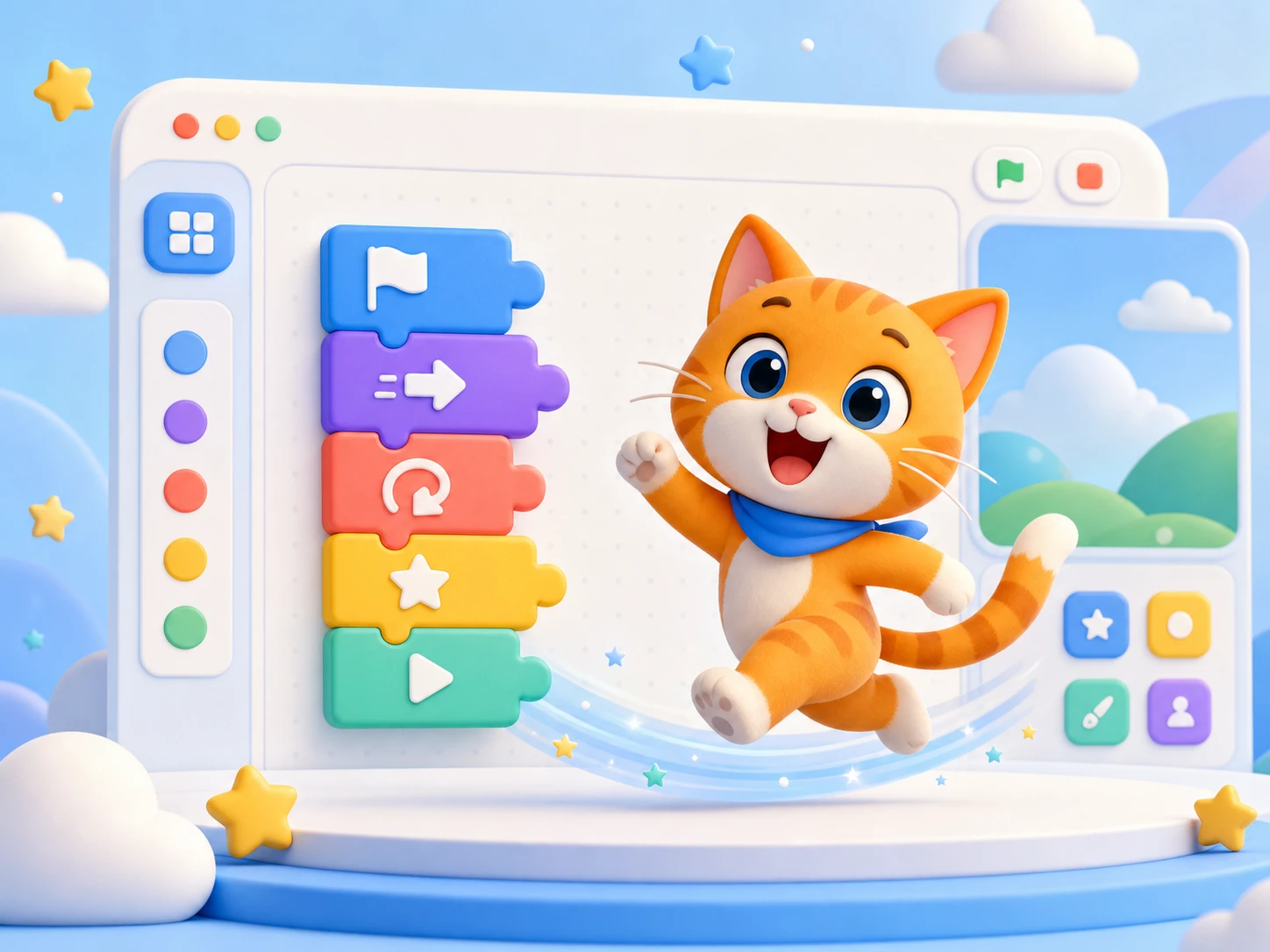
Block commands
No code typing
Instant feedback
Characters move now
Class ready
Easy to teach
Parent safe
Gentle & caring
Turn “writing code” into snapping blocks — visible, tangible, instant feedback
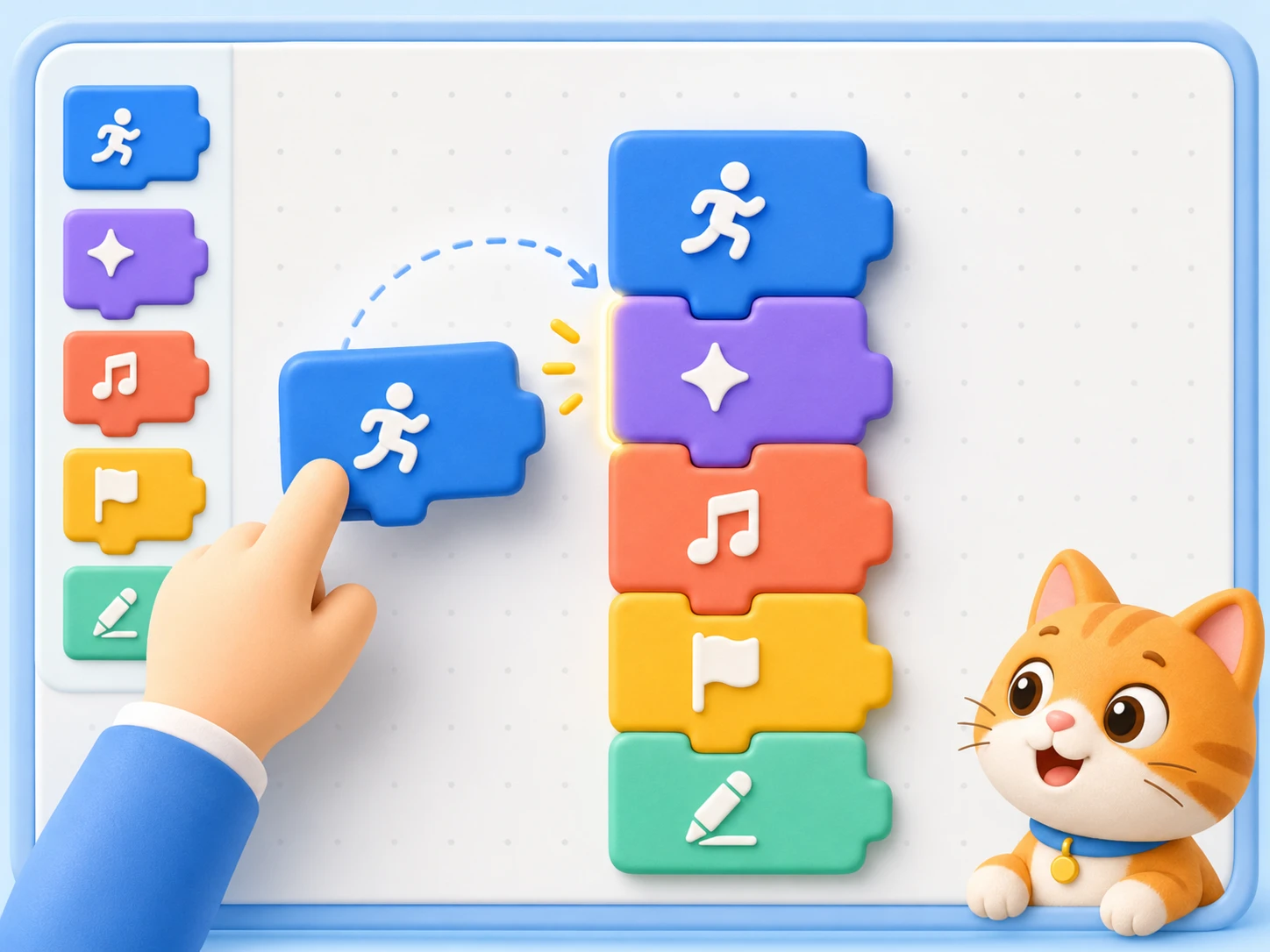
Move, say, and repeat are colorful blocks. Snap them together like LEGO — a program takes shape.
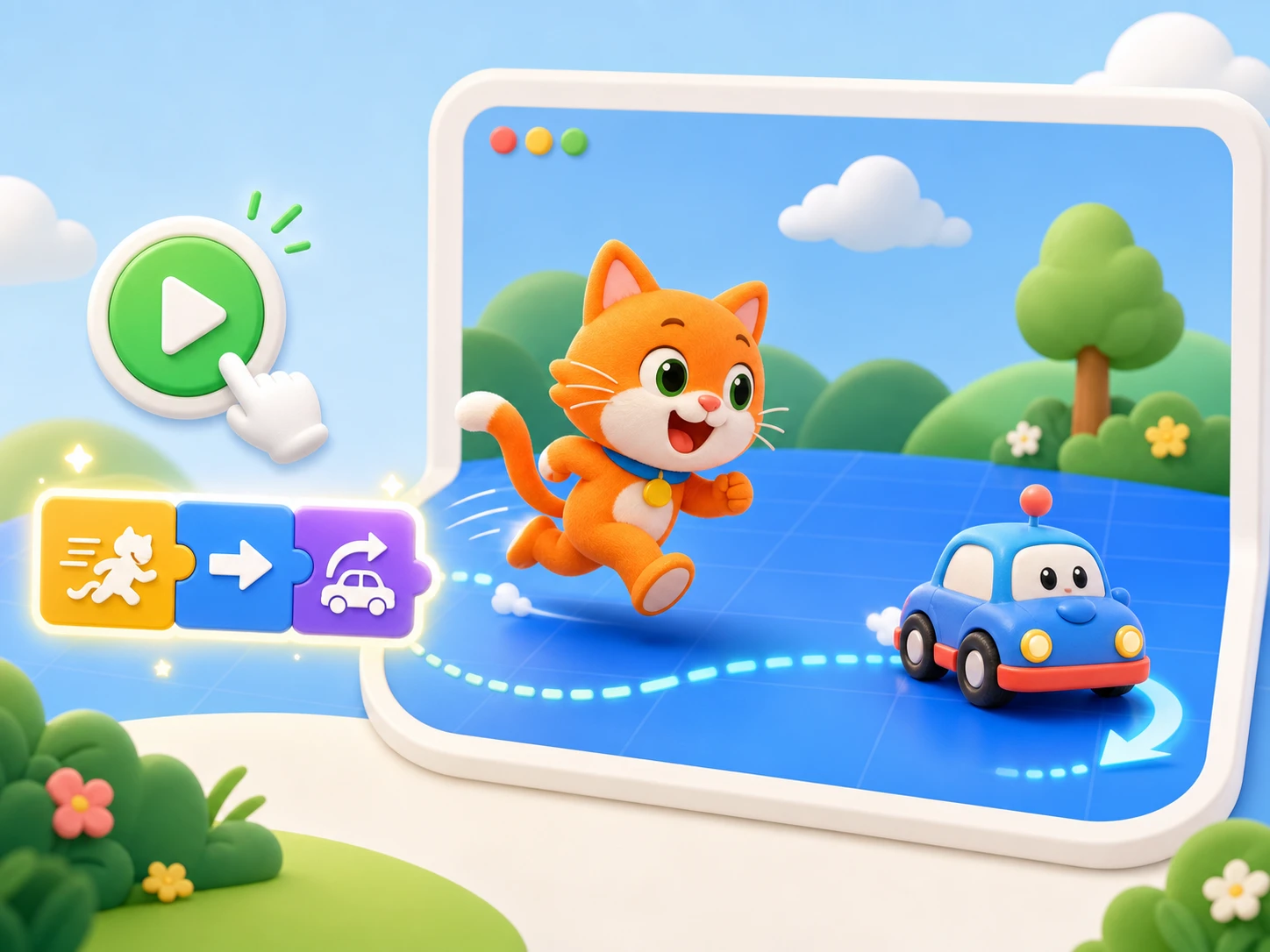
Hit run and the cat walks, the car turns. Change one block and the stage updates — trial and error feels fun.
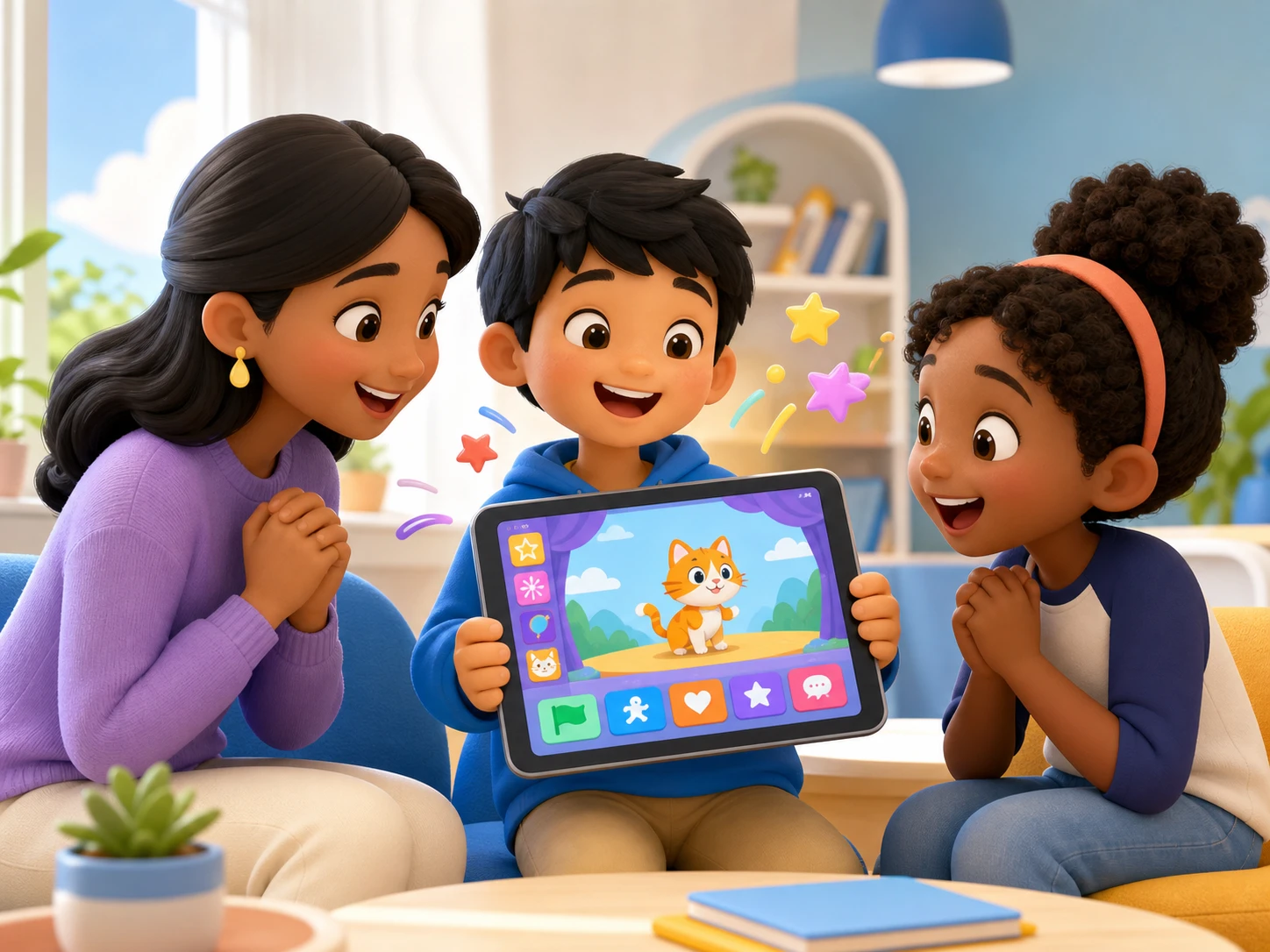
Mini games, interactive stories, moving cards — share with parents and classmates for a real wow moment.
The same blocks can become Whack-a-Mole, a piano, or a recycling game
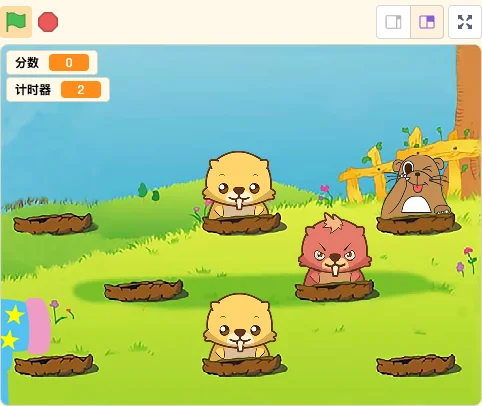
🐹 Whack-a-Mole
Tap moles as they pop up — practice reaction speed, sensing, and scoring blocks.
Follow five steps to turn one small idea into an animation or game you can share
Follow five steps to turn one small idea into an animation or game you can share
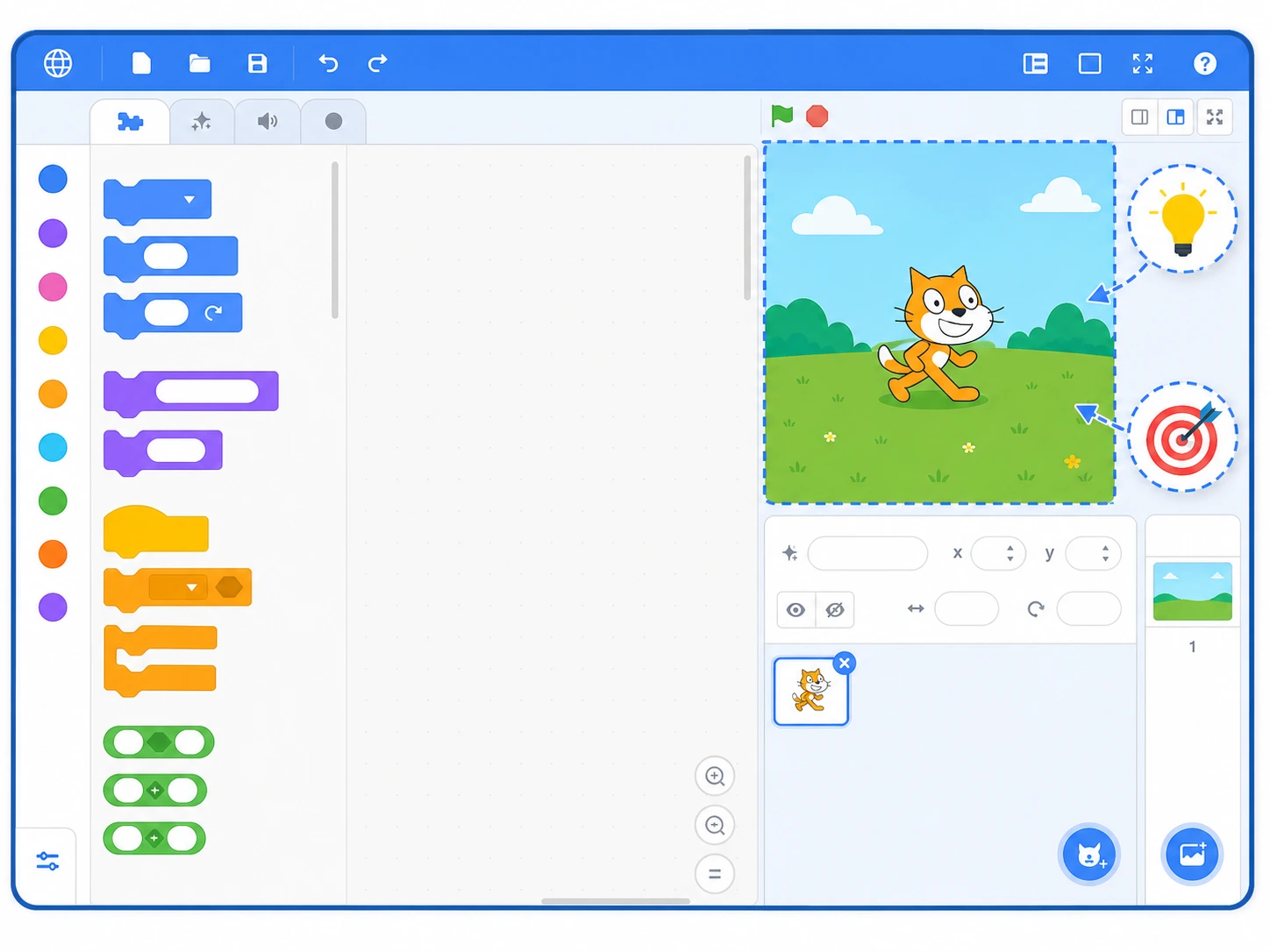
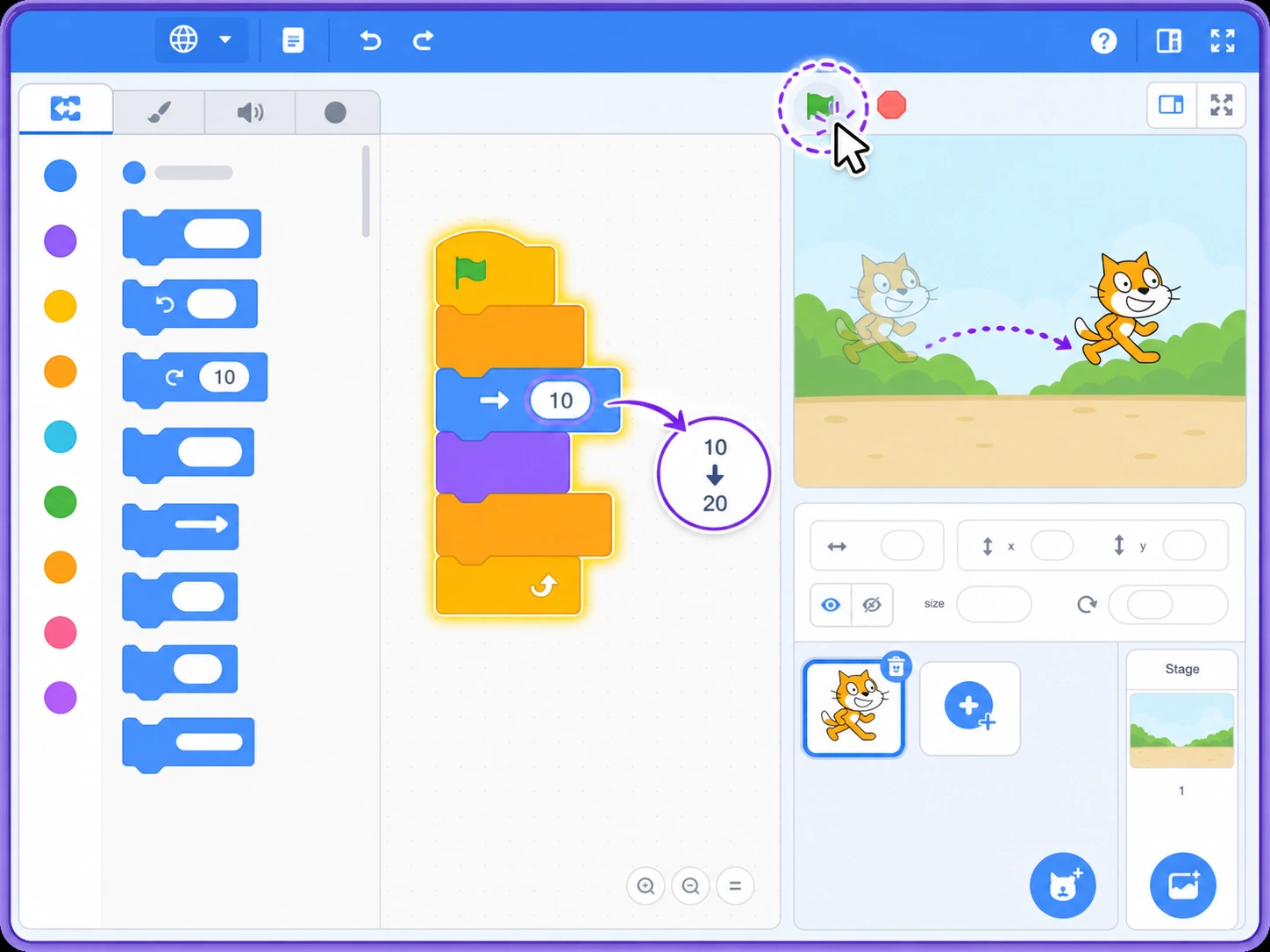
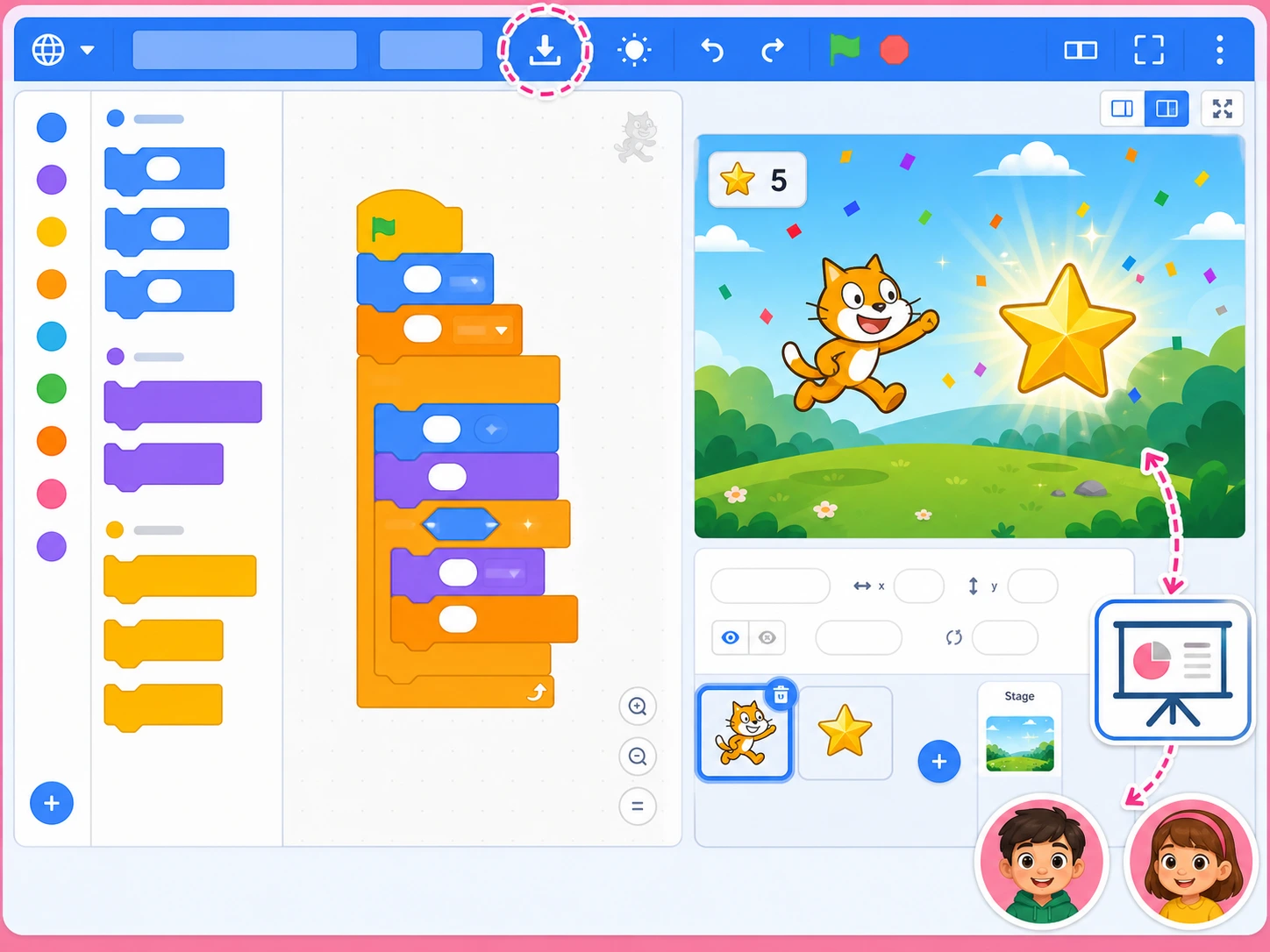
Pick a format first — an animation, an interactive story, or a mini game. Then set a clear goal for your character, like “walk the cat to the star.” The more specific the goal, the easier the blocks come later.
Tip: say it in one sentence — who does what?
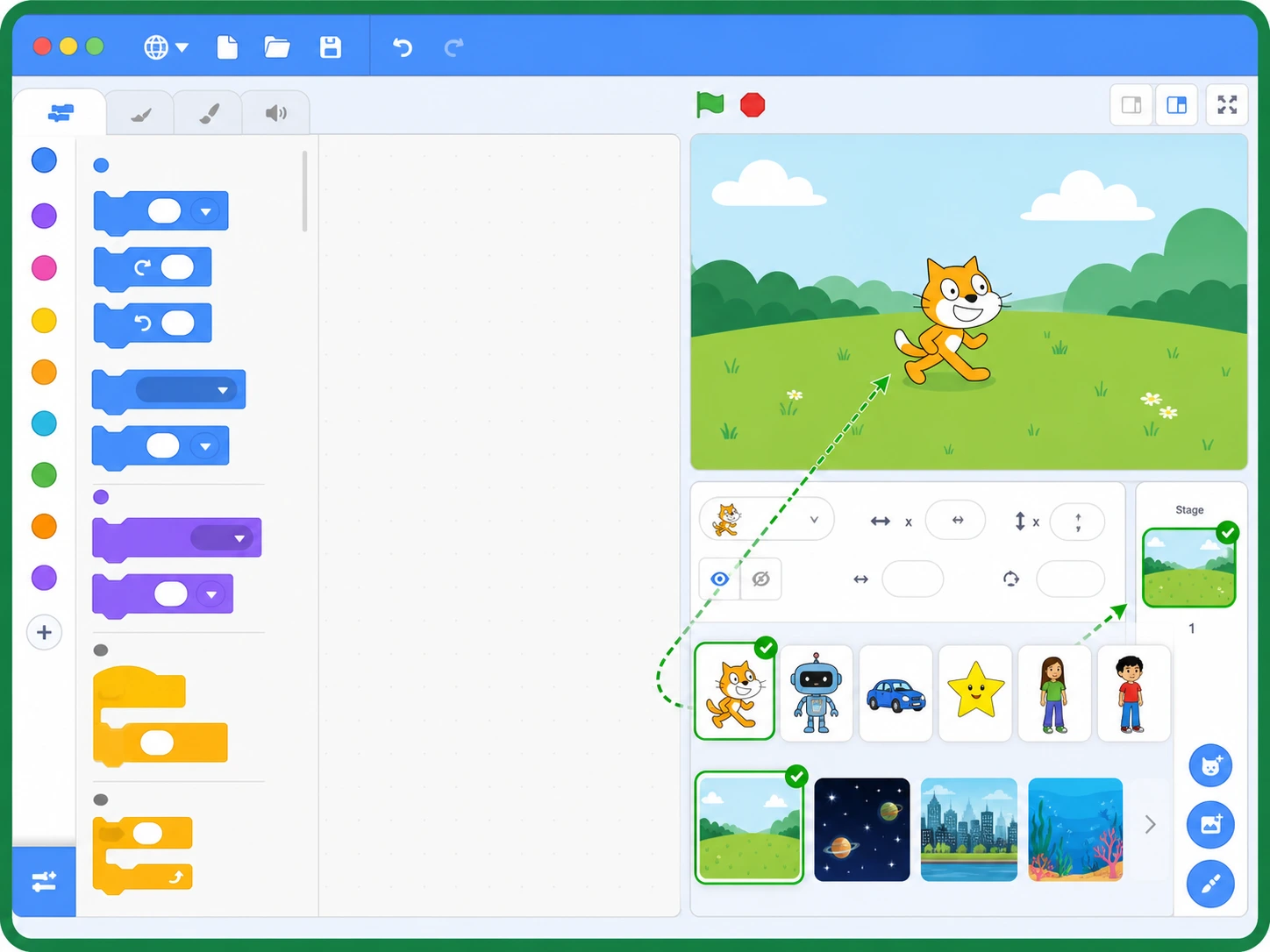
Choose a cat, a car, or your own costume from the sprite library, then give the stage a backdrop like grass or space. With a character and a scene, your story finally has a place to happen.
Tip: start with fewer sprites, then add more once it works.
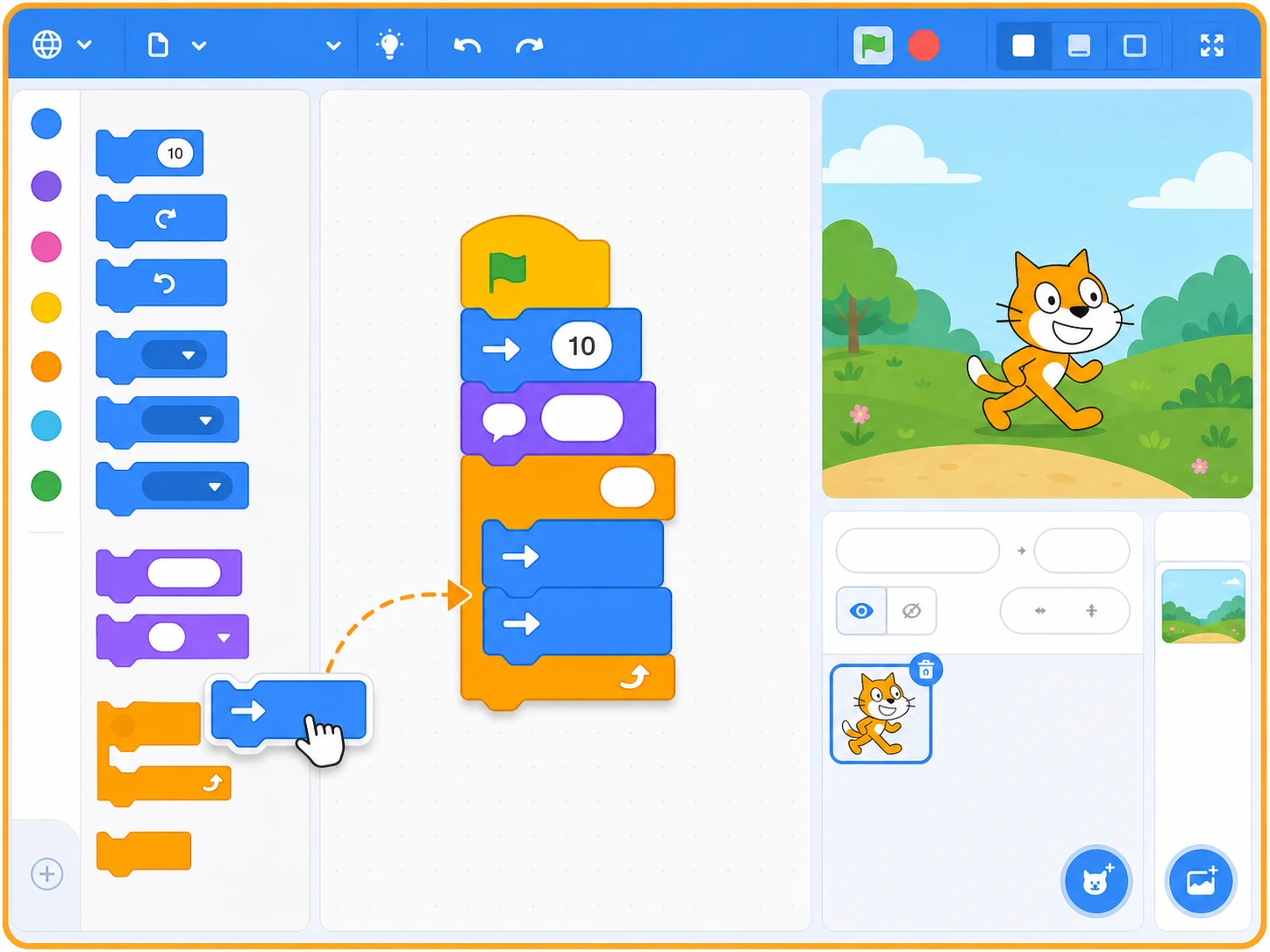
Drag “when green flag clicked” from Events, then snap on blocks like “move 10 steps” and “say Hello.” Blocks connect top to bottom, and the character runs them in order.
Tip: aim for a tiny result with just 3–5 blocks first.
Click the green flag to run and watch whether the character moves as planned. Too slow? Change the steps. Wrong way? Adjust the angle. Out of order? Rearrange the blocks — then run it again.
Tip: change one thing at a time to find problems fastest.
Name your project and download the .sb3 file, then show the finished animation or game to family and friends. Take their ideas back in to add levels, sounds, or new characters.
Tip: finished isn't the end — keep upgrading after you share.
Pick a format first — an animation, an interactive story, or a mini game. Then set a clear goal for your character, like “walk the cat to the star.” The more specific the goal, the easier the blocks come later.
Tip: say it in one sentence — who does what?
Choose a cat, a car, or your own costume from the sprite library, then give the stage a backdrop like grass or space. With a character and a scene, your story finally has a place to happen.
Tip: start with fewer sprites, then add more once it works.
Drag “when green flag clicked” from Events, then snap on blocks like “move 10 steps” and “say Hello.” Blocks connect top to bottom, and the character runs them in order.
Tip: aim for a tiny result with just 3–5 blocks first.
Click the green flag to run and watch whether the character moves as planned. Too slow? Change the steps. Wrong way? Adjust the angle. Out of order? Rearrange the blocks — then run it again.
Tip: change one thing at a time to find problems fastest.
Name your project and download the .sb3 file, then show the finished animation or game to family and friends. Take their ideas back in to add levels, sounds, or new characters.
Tip: finished isn't the end — keep upgrading after you share.
Built for AI coding beginners — play first, logic follows
Wrong snaps simply won't fit — fewer syntax tears, better first steps.
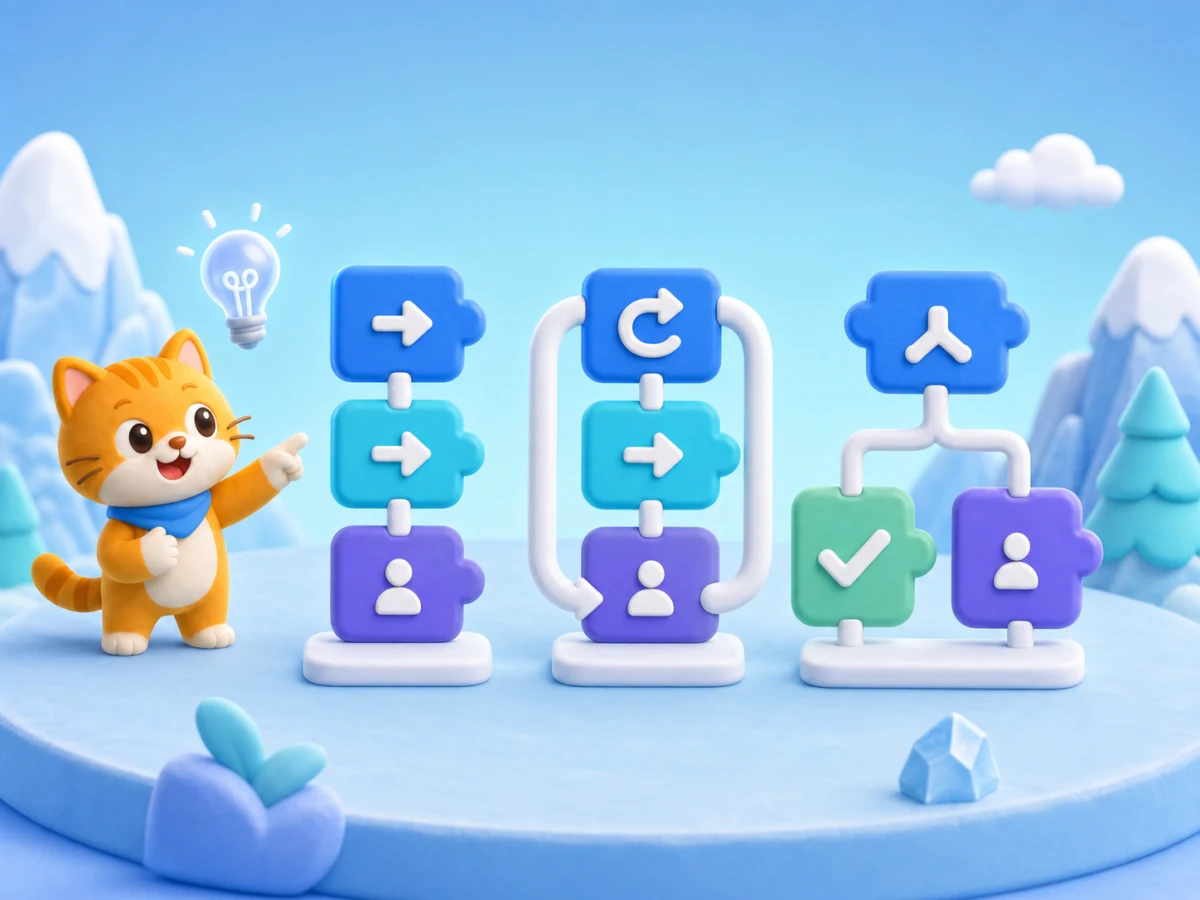
Sequence, loops, and conditions sit on the blocks — abstract ideas become structure you can see.
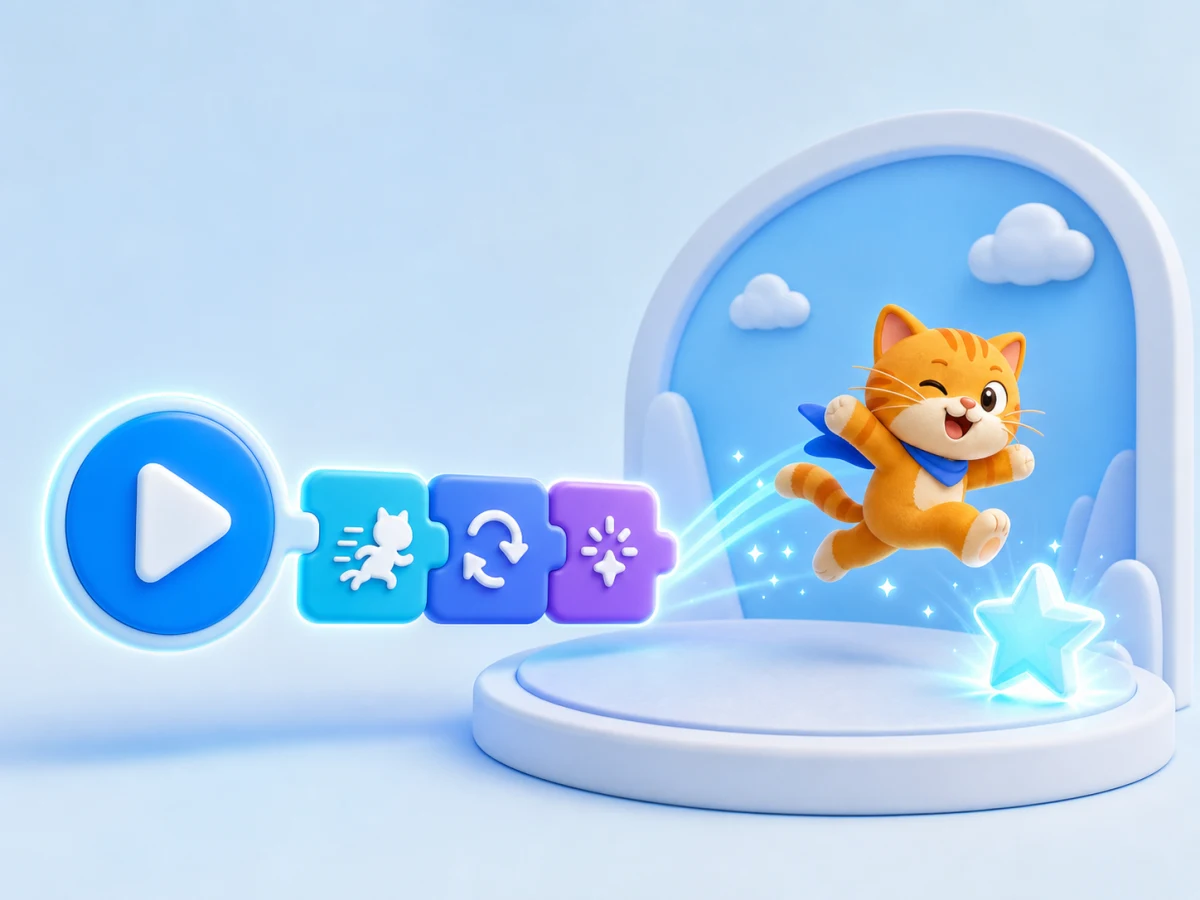
Run after every tweak — characters respond at once and curiosity stays lit.
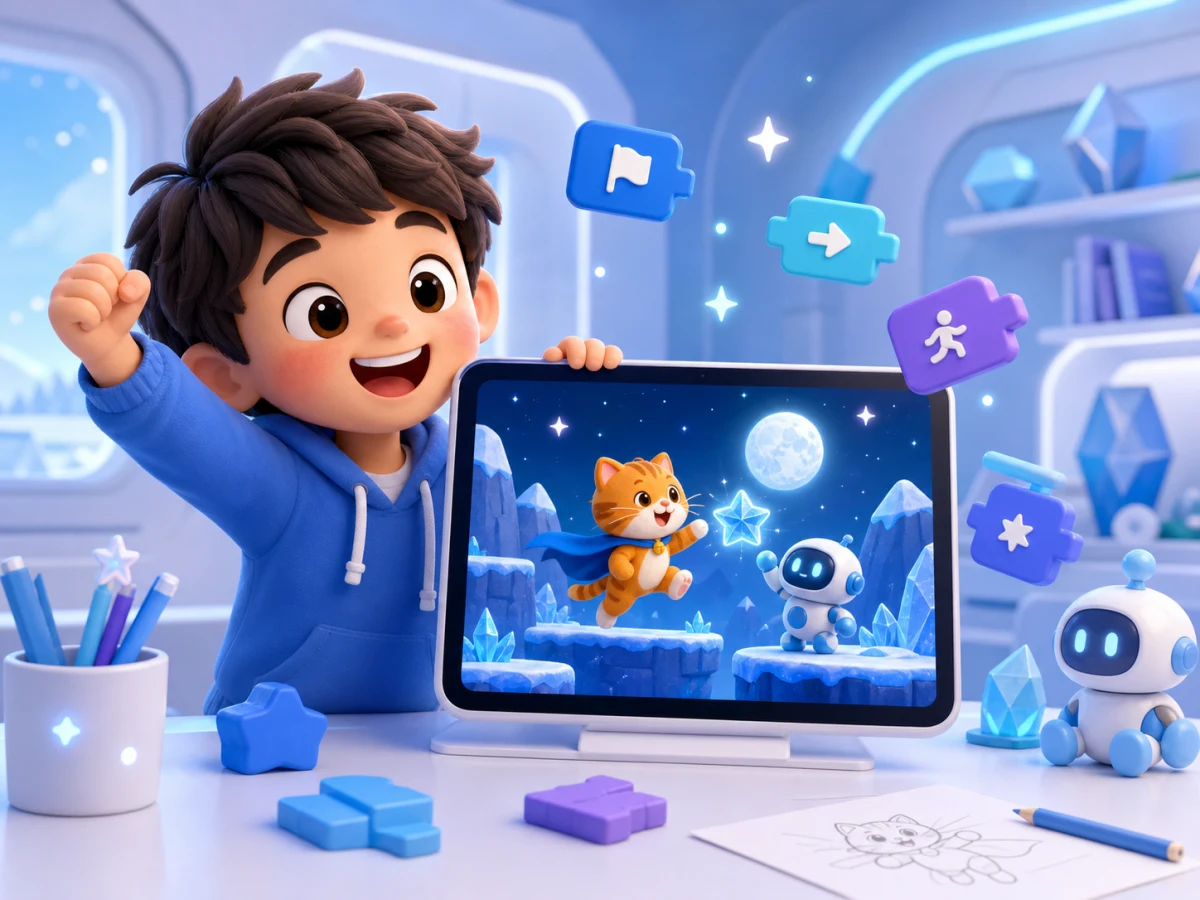
Not drills — kids ship their own games and stories, with lasting pride.
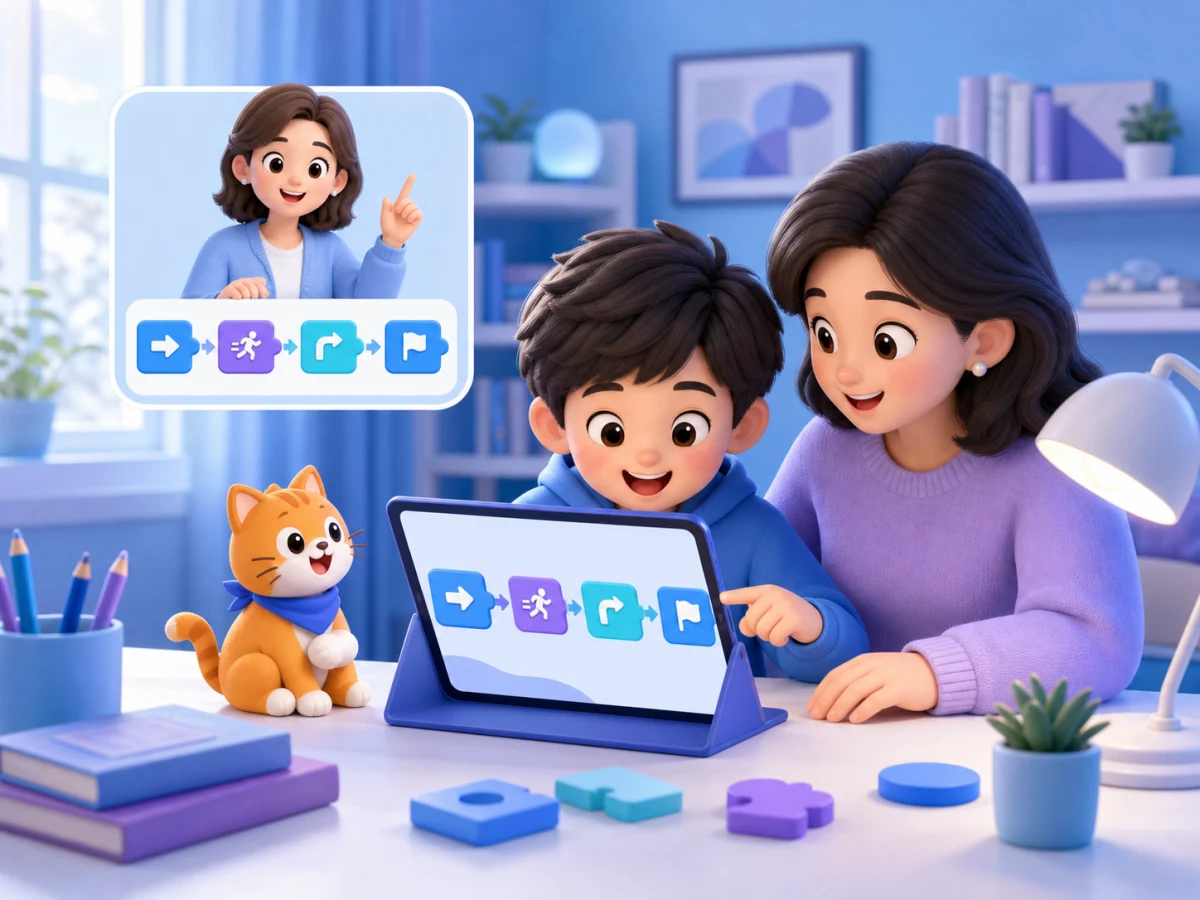
Clear steps for demos in class — parents can snap blocks alongside kids.
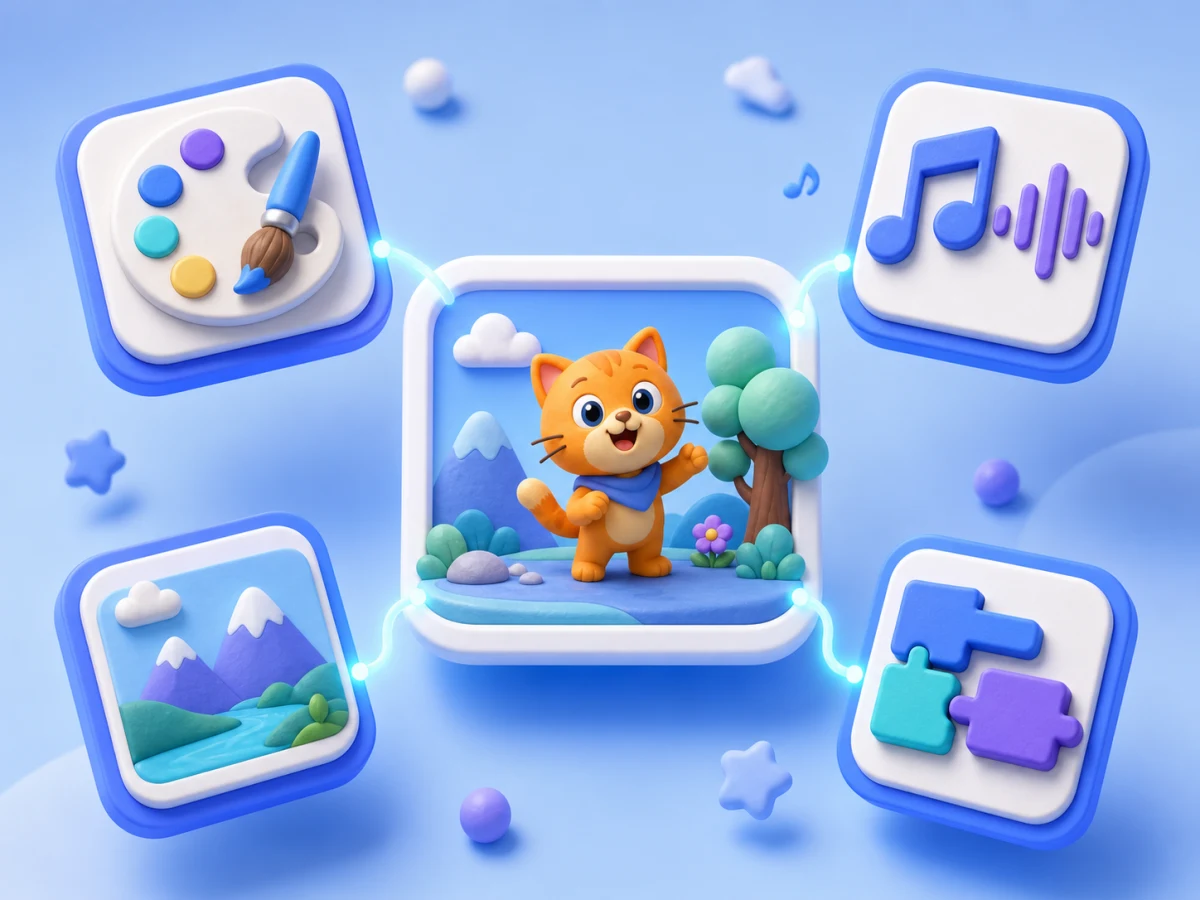
Drawn characters can become games or stories — coding isn't a silo.
Not about coding earlier — about problem-solving, iterating, and creating
Breaking tasks, spotting patterns, iterating — more valuable than memorizing syntax.
Creation-led exploration at the child's pace — parents can watch anytime.
Ship something that moves first, then meet loops and conditions naturally.
Everything you want to know about AI coding
AI coding here means kid coding with colorful command blocks. Kids learn by drag–snap–run; they don't need to memorize English first.
Ages 6–12 fit well. Younger kids can start with simple motion; older kids can build games like Whack-a-Mole, piano, and recycling sort.
Blocks teach sequence, loops, and conditions — the same logic kids carry into Python or other languages later.
It runs in the browser. Desktop and tablet feel best; phones work for browsing projects and guides.
No. Snap blocks and hit run together. When stuck, encourage “change one block and try again” — better than handing over the answer.
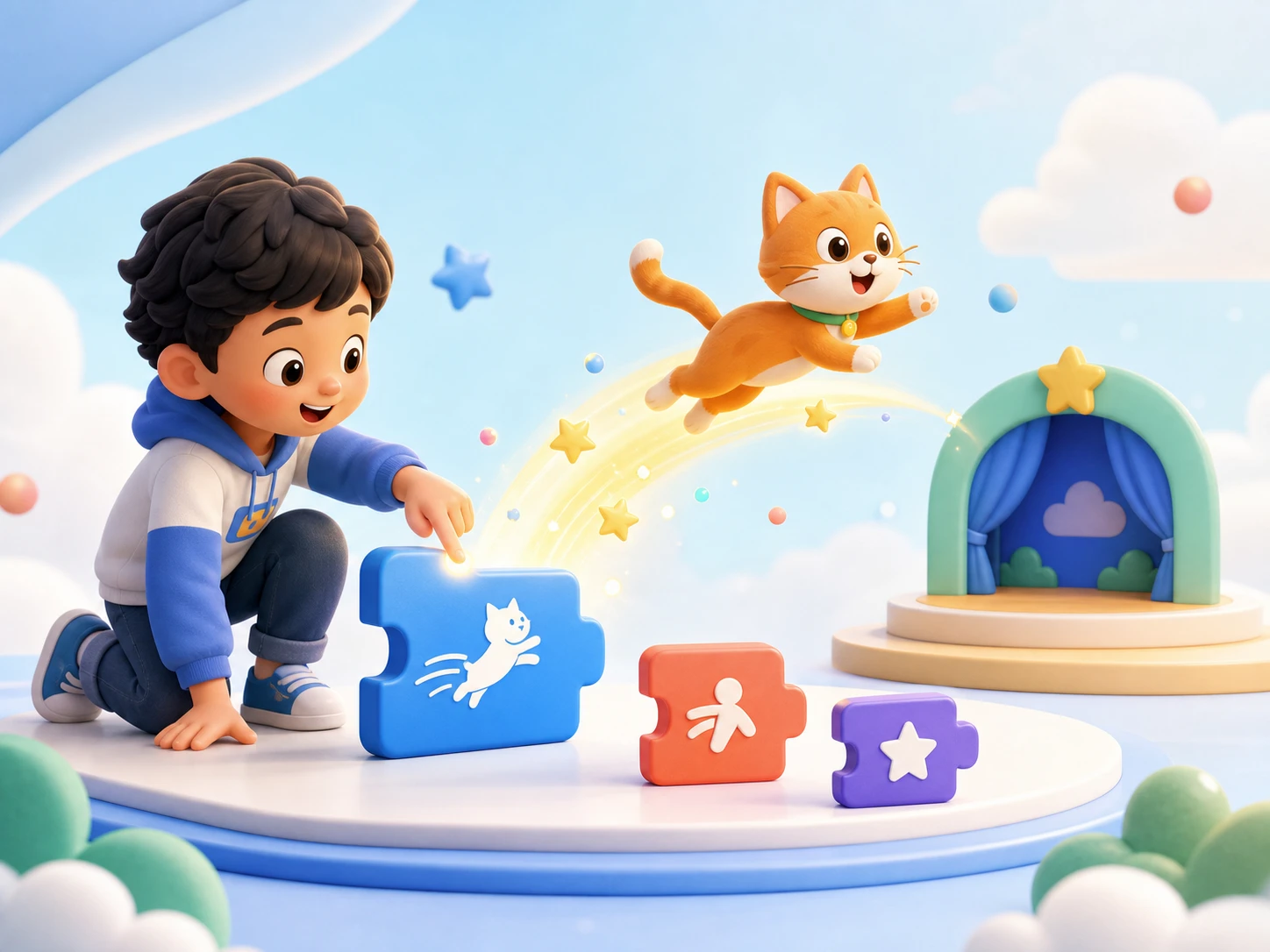
Snap a few commands — make a character walk, talk, or do a trick. Coding can feel this playful.
Try it nowAfter coding, keep creating with Magic Drawing, Text to Video, Text to Music, and Picture Books.